Monday, June 29, 2026

Got a TAX audit notification lately? It might be FRAUD....or MALWARE...

Click here to access the web article. 


Watch out — that income tax form could actually be dangerous malware....

  • Fake tax notices are becoming delivery vehicles for sophisticated remote access malware
  • Attackers hide malicious code behind convincing government branding and legal references
  • The malware quietly establishes encrypted communication with servers outside the country

A new phishing campaign is using fake income tax assessment notices to deliver dangerous malware to unsuspecting victims across India.

Researchers at CYFIRMA identified the operation, which relies on a fraudulent website built to resemble official communication from the Indian Income Tax Department closely.

The fake portal, hosted on a recently registered domain, presents a convincing assessment order complete with legal references, financial penalties, and urgent compliance language designed to pressure recipients into acting quickly.

Sunday, June 28, 2026

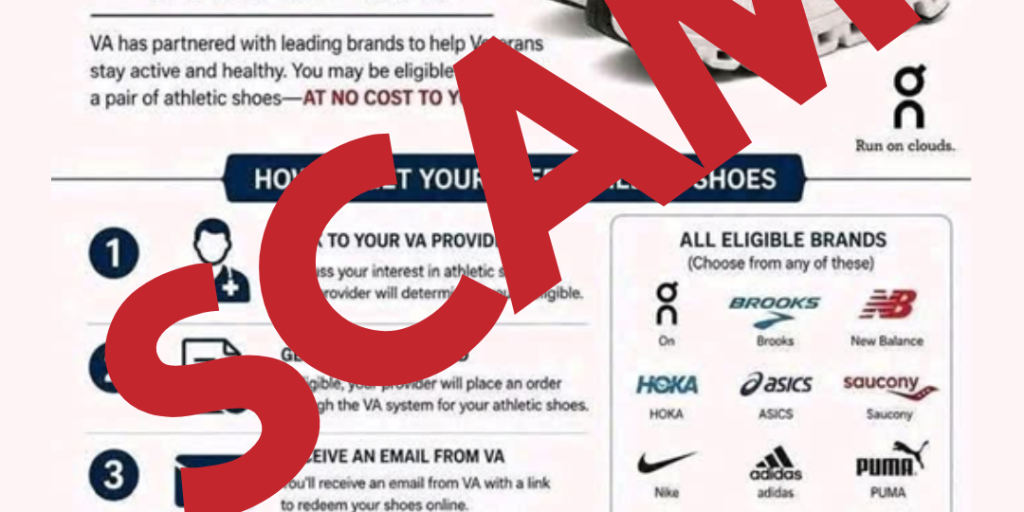
SCAM ALERT: "Free Athletic Shoes" Targeting Veterans


Scam Alert: Fraudulent “Free Athletic Shoes” Messages Targeting Veterans

Poster warns about "GET FREE ATHLETIC SHOES FROM VA!" scam with crossed-out text and red "SCAM" overlay.
Scam Alert: This graphic circulating online about free athletic shoes from VA is not legitimate. VA is not offering free sneakers. Please do not click any links or share personal information. Report fraud at https://reportfraud.ftc.gov/

By Leanna Lynch, Public Affairs Officer

VA is aware of a fraudulent message circulating that falsely claims Veterans can receive free athletic shoes from VA. This message is not from VA.

Scammers are using this tactic in an attempt to collect personal information and potentially steal identities.

If you received this message:

  • Do not respond.
  • Do not click any links.
  • Do not provide any personal information.

Veterans and community members are encouraged to report suspected fraud to the Federal Trade Commission (FTC) at: https://reportfraud.ftc.gov/

Please share this information to help protect Veterans nationwide.

Saturday, June 27, 2026

Windows 10 security updates now extended to October 2027

Click here to see the web based article.

Microsoft quietly extends Windows 10's extra security updates program for free: Users can now stay on Windows 10 until October 2027 securely.


Windows 10's ESU program has been quietly extended by an extra year, now ending on October 12, 2027 instead of October 2026.

Microsoft has quietly announced that Windows 10's extended support updates program will continue for an extra year, now until October 2027 for free if you sign-in to Windows 10 with a Microsoft account.

Originally, Windows 10's extended support program was only supposed to last one year, until October 2026 for consumers. However, a new support pagepublished by Microsoft today has confirmed that the Windows 10 ESU program will now last until October 2027 instead.

"Windows 10 support has ended. You can enroll in ESU any time until the programme ends on 12 October, 2027. If you’re already enrolled, your coverage will automatically continue through that date—no action needed," says the support page

All Windows 10 users that are already enrolled in the ESU program will get this extended year of updates automatically. You can enroll in the program for free by signing in with a Microsoft account, or pay for access via 1,000 Microsoft reward points or $30 USD.

Microsoft has likely extended support for Windows 10 by an extra year due to the ongoing RAM crisis, which has pushed new PC prices through the roof making them difficult to justify financially, especially if you already have a working Windows 10 PC.

There are still hundreds of millions of PCs running Windows 10, and with extended support originally ending this October, many people would have been without the latest security patches keeping their devices secure.

The Windows 10 ESU program is vital to ensuring a PC that is connected to the internet is secure. Microsoft is still updating Windows 10 with security patches through the ESU program, and not being enrolled leaves your device open to attackers that might be trying to exploit vulnerabilities in the Windows 10 OS.

The good news is if you're already enrolled in the program, there's nothing you need to do to remain supported until October 2027. Your PC will keep getting security updates automatically until that date.

Friday, June 26, 2026

From MSN.COM: Alarming 'suspicious activity' scam alerts aim to drain bank accounts: What to know

 Click here to see the web article.

A text message arrives out of nowhere, warning that something is wrong with an account and demanding immediate action.

That's exactly what scammers are counting on.

Multiple reports and law enforcement agencies are warning consumers about a growing wave of phishing text messages, often called "smishing" scams, claiming unusual activity has been detected on a financial, technology, or other online account.

The messages are designed to create panic. Recipients are told their account has been locked, restricted, or targeted by suspicious activity and are urged to click a link or call a number immediately.

The scam typically follows a familiar pattern.

First comes the warning message. Next comes a link directing victims to what appears to be a legitimate website. In reality, the site is controlled by scammers and designed to collect usernames, passwords, credit card information, one-time verification codes, and other sensitive data.

Experts say several warning signs can help consumers spot the fraud.

Among them are messages demanding immediate action, generic greetings that omit the recipient's name, and suspicious web addresses that contain misspellings or unusual domain names.

Consumers are urged not to click links contained in unexpected text messages and never provide passwords, PINs, or verification codes in response to a text.

Anyone concerned about a possible issue should instead visit the organization's official website, use its mobile app, or call the customer service number listed on official correspondence or the back of a bank card.

Cybersecurity experts say taking a few extra seconds to verify a message independently can prevent identity theft, financial losses, and unauthorized access to online accounts.


Thursday, June 25, 2026

From FTC.GOV - Animal lovers: learn to spot and avoid this breed of pet scams


From; FTC.GOV

June 24, 2026

Scammers have been taking advantage of how much people love animals. They’ll steal and manipulate pet images, videos, and even use AI-generated deepfakes to help them trick you into giving them your money or personal information. Fortunately, there are ways to help you detect and avoid these kinds of scams:

Scammers pretend to be law enforcement or an animal hospital, claiming to have your pet who’s had an emergency. They might have seen a flyer for a missing pet, or know from social media that you’re away from home. They might even use AI to create fake photos or videos of your pet in distress. But it’s all a lie. If someone says the only way to pay for your pet’s treatment is with a gift card, a payment app, cryptocurrency, or a wire transfer service, you’re dealing with a scammer.  

Scammers impersonate real animal shelters and hospitals collecting donations for pets in need. They might create fake webpages and posts using stolen or AI-generated images of pets in need of forever homes. If someone asks you to donate, check ftc.gov/charity for advice on how to donate safely. And, as part of your research, do a reverse image search to see if the images are stolen.

Scammers want you to think you won a prize because you previously donated to help animals. The name of the prize or organization might sound real but it’s another lie. If you have to pay to collect a prize or sweepstakes winnings, you know it’s a scam.

Don’t let scammers rush you into making a decision. Slow down and talk to someone you trust. And if you spot one of these scams, tell the FTC at ReportFraud.ftc.gov.


Apple Thinks It Has Solved A Major Password Problem

 Click here to read the article  (From Huffington Post - June 18, 2026)

Many of us are guilty of a cardinal cybersecurity sin: We reuse old passwords. In a 2025 survey of 2,300 adults, more than half of respondents said they recycled an existing password when updating accounts with companies that have disclosed data breaches.

But Apple wants to fix this bad habit by flagging and automatically updating compromised or weak passwords you’re using on websites and apps through its new Passwords app feature. The update was announced at the tech giant’s June developers conference.

Apple is automating the process of updating update weak, old passwords in its upcoming iOS27 software release. 

Apple is automating the process of updating update weak, old passwords in its upcoming iOS27 software release.

Following the release, you don’t have to manually update each password ― Apple can do it for you automatically for eligible accounts. You won’t need to sign into each individual app and waste time to do this.

In the developer demo shown at the conference, the iPhone showed a “Fix Passwords” button at the top that a user needed to tap to change multiple passwords in listed apps at once. Then Apple said it would use its artificial intelligence and Safari to update the password in the background, and let you know through an update that will state “Security upgraded.”

The Passwords app will do this through Apple’s processing system for artificial intelligence known as Private Cloud Compute, which says it will not retain any of your data, including via logging or for debugging.

The final version of this feature will not be released until the fall iOS 27 software update, but you can try the iOS 27 developer beta right now.

Bill Budington, a senior staff technologist for nonprofit digital rights group Electronic Frontier Foundation, said he is “cautiously optimistic” about this feature. “I would want to see how it’s implemented, and also what it looks like when it comes out,” he said.

And it’s not the only way you can protect your data in an app in the meantime. “We know the secure way to generate passwords. Those are built into password managers already,” Budington noted.

These password managers generate unique, random-looking passwords for new accounts, and store them all for you without having to remember each one. It’s also unclear yet how the new Apple feature will integrate with third-party password apps people already use.

And then there’s the larger question of trusting Apple’s AI to decide which passwords need an upgrade and what a strong password looks like.

Apple defines a weak password as one that is “easily guessed or used multiple times,” but it remains to be seen how well it is at deciding what’s a weak or strong password. When AI creates a password, it’s not always the strong safeguard it’s supposed to be. In one PCMag test, Google Gemini generated weak passwords even when it was prompted to create strong ones.

But overall, this could be an important step forward for people who use the same password on every app. “If you have the same password on five different sites, and even one of them implements bad security ... then all five sites are vulnerable to attacks using those credentials,” Budington explained about why reusing passwords is so insecure.

“If people are using this because they were not using anything else before, I think that’s definitely a huge improvement,” he said.


Tuesday, June 23, 2026

Password Manager "LastPass" confirms data breach

 Click here to see the article

LastPass announced that hackers accessed customer data from its Salesforce environment after stealing the company's OAuth tokens in the Klue supply chain attack earlier this month.

The password management platform says its products, services, and infrastructure were not affected by the incident and that customer vaults remained secure.

“On June 12th, LastPass was made aware of an incident that occurred at Klue (klue.com), a third-party market intelligence platform utilized by our go-to-market teams, which integrates with our Salesforce and Gong systems,” LastPass says.

"We immediately launched an investigation and learned that, as part of this incident, an unauthorized actor was able to obtain OAuth tokens Klue held for many of its customers, including LastPass.”

“The threat actor then used these credentials to access LastPass customer data within our Salesforce environment.”

The investigation into the incident did not reveal any evidence that the attacker accessed Gong-related data, which typically includes customer calls and emails.

According to LastPass, the following data may have been exposed:

  • Customer names
  • Phone numbers
  • Email addresses
  • Physical addresses
  • Support case information
  • Sales/CRM-related data

Attackers may leverage the above information in phishing and social engineering attacks. The general recommendation for users is to be cautious of unsolicited communications over the phone or email, especially those that request sensitive details. The master password should not be shared with anyone.

The Klue supply chain attack was claimed by the Icarus extortion group, who compromised the infrastructure of the AI-powered market intelligence platform and stole OAuth tokens that connected customers' Salesforce environments.

Icarus hackers gained access to Klue's infrastructure using compromised legacy credentials for an integration service. This gave them access to OAuth tokens that connected Klue to various third-party services.

The incident impacted multiple organizations, including Recorded Future, Tanium, Jamf, Sprout Social, Gong, and Insurity.

The threat actor exfiltrated Customer Relationship Management (CRM) data and launched an extortion campaign.

LastPass has disabled employee access to Klue, rotated the exposed API/OAuth tokens, and notified law enforcement while the investigation is underway.

The company also warned about the threat actors using the sender domains baccarat.com[.]au, robinskitchen.com[.]au, house[.]com.au, noting that only communications from the official support channels should be trusted.


ZDNet Article: The 10-step phone security tune-up you should run every year - and why


  • A quick cybersecurity wellness check is all it takes to protect your phone from disaster.
  • Check your app usage, permissions, and physical security settings.
  • An annual checkup reduces data exposure risk, improves privacy, and optimizes your device.

Enjoying the benefits and conveniences of life in our complex world requires daily diligence, from replacing batteries and tracking finances to keeping medical appointments and maintaining vehicles.

Here's another routine task we should all have on our calendars. Conduct an annual cybersecurity wellness check of what's likely the single most important device in your life: your smartphone.

Also: Companies are profiling you from your smartphone use - how to stop them

We use our smartphones to communicate, work, shop, and stay connected and entertained -- but we don't always remember to keep them optimized or secure, which can turn these essential devices into serious liabilities.

While we always recommend you accept security updates on your smartphone as soon as they are available, there are other checks that, if performed even once a year, can hugely benefit you. 

Take just one hour to give your smartphone a once-over that will tighten your security, refresh your memory on app permissions, and optimize your privacy settings. Our 10-step checklist makes it a breeze and could save you some major headaches down the line.

1: Make sure your device and apps are up to date 

The first step in any annual cybersecurity checkup is to ensure that your operating system and any mobile applications installed on your smartphone are up to date. This means accepting any new OS and app versions, as well as security updates and patches. 

Also: I always change these 7 phone privacy settings on every new device - here's why

Depending on the make, model, and version of your iOS or Android device, the location where you check your phone's status can vary. However, you can usually find updates under Settings > Security and Privacy > Updates, or Settings > System > Update. You may also be notified when a new software update is available. 

To check the status of your smartphone's apps, you can visit Settings > Apps or the Update tab. 

2: Check your app and device permissions

The next step in your yearly audit is to review your app and device permissions. Whenever you install a mobile application, you will be asked to grant or deny specific permissions, such as access to your files, control over your location services, and permission for the app to send you push notifications. 

There is also a variety of settings on your smartphone that need to be managed -- particularly security and privacy settings.

There are plenty of options to explore, including whether you want your smartphone to automatically detect and block threats; screen locks and biometrics; lost device protection; and whether you are comfortable with personalized ads and sending diagnostic data.

On Android, you typically need to go to Settings > Security and privacy > More privacy settings > Permission manager. On iOS, you will likely find permissions management under Settings > Privacy and Security, or Settings > the specific app you want to examine. To explore your device settings, simply go to Settings. 

"Never do attackers' jobs for them by giving access away unnecessarily," cautioned Rob Kehoe, chief technology officer of Smarttech247. "Once a year, go through every app on your phone and check what permissions it has. Look at the camera, microphone, location, and contacts. If an app has access it doesn't need, remove it. Set location access to 'only while using' for everything. And if an app isn't useful anymore, remove it completely. This only takes 10 minutes, and most people are shocked by what they find."


3: Delete any apps you no longer use

You should also audit the apps installed on your smartphone. (We recommend checking this more than once a year -- preferably every few months.) Old apps can pose a risk to your privacy; they may have been granted unnecessary permissions and may also consume your device's resources and power. 

If you haven't used a mobile app in a few months, ask yourself: "Do I really need it?" If the answer is no, remove it. You can always reinstall apps later, but each one you remove reduces your potential attack surface. 

While both Android and iOS will revoke permissions from apps you haven't used for several months, it's still advisable to run a check yourself every so often. Take a look at the Apps section in your handset's Settings tab to refresh your memory about which apps are installed. Alternatively, check your home screen and hold your finger down on any app you want to remove -- you should see the option to uninstall it. 

4: Review and refresh your passwords

Hardly a day goes by without a new data breach. The challenge of containing our data and protecting our accounts is now so vast that dedicated services warn consumers about data breaches affecting their accounts, and some companies now prevent users from reusing passwords found in online data leaks. 

Reviewing your passwords and changing them frequently is essential to protecting your accounts and data, and this protection applies to any device you use to access them -- including your smartphone. 

Passwords should be complex, made up of upper- and lower-case letters, numbers, and symbols, when possible. It's also important never to reuse the same credentials across multiple online services.

If you think you will have trouble remembering complex phrases, consider using a password manager. 

5: Check 2FA, multi-factor authentication settings

After you've refreshed your passwords, you should check all two-factor authentication (2FA) and multi-factor authentication (MFA) settings for your online accounts and devices. Many of us rely on our smartphones for 2FA, receiving a code we need to use when 2FA is enabled on our accounts as a secondary layer of security, so it is important that this information is up to date and our phones are secure. Otherwise, attackers could intercept these codes and compromise our accounts.

If you have 2FA/MFA enabled on your online accounts, go to their privacy settings and verify that the phone number is correct and that you've selected your preferred authentication method. This could be a text message, an emailed code, an authenticator app, or a passkey. Prioritize Google, Apple, and Microsoft services, financial and banking apps, core email accounts, frequently-used shopping services if your details are stored, and work platforms. 

6: Audit your physical device security

Checking our digital services, online accounts, and app usage is only part of an annual cybersecurity audit -- it's also important to review our physical handset security. 

Estimates suggest that approximately 1.3 million phones were stolen in the US in 2023. Stolen handsets can be wiped and resold; if a device is not properly secured, it can lead to the loss of personal information, compromised accounts, lost files, and even financial damage. 

You'll need to dive back into your settings again. Look for options including:
  •     Lock screen: Do you have a way to lock your smartphone from the screen? Is a passcode or biometric identifier in place? It's best to have some form of lock to prevent data theft or eavesdropping. 
  •     Safety and emergencies: You can use your smartphone to share your location or notify emergency services when needed. Check that these settings are enabled if you want them. You can also enable alerts when unknown trackers are detected near your handset.
  •     Biometrics: Your thumbprint or retina is also a valuable way to physically secure your device. Consider enabling these to keep others out of your smartphone, its apps, and its data. 
  •     Device encryption: On modern smartphones, encryption is often enabled by default when a lock screen is enabled, but you should check, as this helps protect your data on older models. Explore settings, security, and privacy to see if enabling device encryption is possible.

  
7: Look for unexpected connected apps and devices

It's also important for you to audit your online accounts, services, and smartphone for any unexpected apps, devices, or active sessions.

For example, if you are logged into your email account only on your smartphone but a laptop connection has also appeared, it could mean someone has quietly gained access to your account. This can be a serious security issue due to eavesdropping, potential data theft, and even the acquisition of 2FA codes if your email is compromised. 

Check for any unrecognized locations, access times, or devices -- including older smartphones you've sold or that have been stolen. If you find any, revoke access immediately and change your passwords. You should do the same for any associated online accounts, including e-commerce platforms, work apps, and social media.

8: Run a malware scan

Android and iOS smartphones have built-in antivirus protection, but it never hurts to run your own check -- preferably more than once a year.

There can be threats lurking on your mobile device, and most of these stem from malicious apps that are hiding information stealers, keyloggers, monitoring software, Trojans, and nuisanceware. Antivirus software can catch these apps before they run on your handset, and scans can give you peace of mind that your smartphone is clean.

Help yourself, too, by only downloading apps from trusted sources and refraining from jailbreaking your device.

9: Review your account and device recovery settings

Do you have Android's Find My Device, Find My Mobile, or iOS's Find Devices enabled? 

As part of your annual audit, consider enabling features on your smartphone that may increase the likelihood of recovering it if it is lost or stolen.

On Android, the Find Hub lets you locate any registered device on a map, remotely lock it, or erase it, even if it is offline. You mark a device as "lost," and data gathered from a global network of Android devices is used to pinpoint its location. The same type of crowdsourcing is used on iOS, too, and you can access the same functionality if your device is lost -- tracking, locking, and wiping remotely in cases of loss or theft.

Be warned: You will likely need to enable these services and register your devices before such an event occurs.

Many smartphones also offer theft protection features, remote locks, and automatic screen locks when they detect potential theft. You can find these under Settings and menu options such as Lost Device Protection. 

10: Start adopting these security habits

Now that your audit is complete, consider adopting the following five security habits to improve your personal security and privacy:

  • Take data breach notifications seriously: If you hear a news report or receive an alert about a breach at a company you are a customer of, change your account passwords immediately. 
  • Review apps and permissions frequently: It's best to take a few moments every few months to review your apps, their permissions, and whether you still need them installed on your device. 
  • Physically secure your devices: Get in the habit of supervising and protecting your devices at all times. It only takes a distracted moment for your laptop to vanish from your table at a coffee shop, or for your smartphone to disappear from your pocket. 
  • Keep your devices updated: It's the simplest step and also one of the most important. Accept new security updates for your smartphone and apps as they become available to stay protected from emerging threats and vulnerabilities. 
  • Stay suspicious: If you receive a suspicious SMS, WhatsApp call, or email, you might be getting phished. This is one of the most common threats we face today. Don't panic and don't click any links in the message. If a message looks official but you're unsure, go directly to the organization's website to contact them.

Sunday, June 21, 2026

Apple has fixed a security flaw in Beats Studio Buds which let hackers spy on conversations


The vulnerability was discovered in 2025 by security researchers Dennis Heinze and Frieder Steinmetz of ERNW. It has been assigned CVE-2025-20701 and was given a severity score of 8.8/10 (high). 

The researchers explained it stemmed from a missing authentication weakness in the Bluetooth BR/EDR radio, and also published a proof-of-concept (PoC) exploit that showed how malicious actors might initiate a call and listen in on people’s conversations, as long as they were within Bluetooth range.

Issuing a patch

"In most cases, these vulnerabilities allow attackers to fully take over the headphones via Bluetooth. No authentication or pairing is required," they said. "The vulnerabilities can be triggered via Bluetooth BR/EDR or Bluetooth Low Energy (BLE). Being in Bluetooth range is the only precondition. It is possible to read and write the device’s RAM and flash.They also managed to pull the call history, stored contacts, and even succeeded in calling a number, after extracting the Bluetooth link keys from a vulnerable device’s memory. 

"The range of available commands depends on the mobile operating system, but all major platforms support at least initiating and receiving calls," they said, but added that "real attacks are complex to perform" and should likely target only high-value targets because they require technical sophistication and physical proximity.

The team also showed it was possible to chain this vulnerability with two other ones impacting the same component (CVE-2025-20700 and CVE-2025-20702), to use the Bluetooth Hands-Free Profile (HFP) to issue commands to the phone.

Apple has now released a new security advisory, confirming it released a fix for the flaw.

“An attacker within Bluetooth range may be able to listen through the microphone of a device which is not yet paired and actively seeking pair requests,” the advisory reads. “This is a vulnerability in open-source code and Apple Software is among the affected projects. The CVE-ID was assigned by a third party.”

Apple fixed the bug in Beats Firmware Update 1B211, which will be automatically installed next time users pair their headphones with their iPhone, iPad, or mac devices

Thursday, June 18, 2026

24 billion stolen records exposed online. Here’s what to do....


24 billion stolen records exposed online. Here’s what to do

| June 17, 2026
databreach

A newly discovered database containing 24 billion stolen records is a reminder that personal information from data breaches, phishing campaigns, and infostealer infections continues to circulate online.

The collection was exposed on the internet before being taken offline. While researchers can’t confirm exactly whose information was included, the discovery is a good opportunity to check whether your email addresses, passwords, or other personal data have already been exposed.

What happened?

Researchers at Cybernews found a publicly exposed database holding more than 8.3 TB of data.

The data, consisting of 24 billion credential records, reportedly came from 36 sources, including numerous Telegram channels, prior breach compilations, collections of infostealer logs, and some datasets apparently exported directly from live servers.

Because the data came from different sources there are some differences in what the records contain and how they are organized.

Some records were structured infostealer logs containing usernames, email addresses, and plaintext passwords, and the associated login URL. Infostealers are a type of malware designed to steal sensitive information from infected devices, such as your home computer.

An infostealer log from a single infected device can include passwords stored across all browsers, active session cookies and tokens (including those that bypass multi-factor authentication), autofill data, device fingerprints, and sometimes crypto wallets or messaging accounts. The complete bundle is what ends up in logs such as those seen by the Cybernews researchers.

Roughly 1.7 billion of the records came from hacking-related Telegram channels, mainly English and Russian, including at least one that was focused on stolen credit card data.

The exposed database was hosted on an Elasticsearch cluster. Elasticsearch is a tool used to quickly store and search lots of data. If an Elasticsearch server lacks passwords, authentication, or network restrictions, it can be accessed by anyone who finds it online. Without protections such as passwords or a firewall, anyone can read, copy, change, or even delete its data.

Other documents in the dataset contained information about known vulnerabilities, articles about breaches, and social media posts about cyberattacks. This suggests the owner actively monitors security news and vulnerabilities and enriches the credential hoard with fresh breach information, either for a commercial “monitoring” service or for offensive use.

A few years ago, we wrote about what was called the “mother of all breaches,” where the source of the dataset was later identified as data breach search engine Leak-Lookup.

This newly discovered 24 billion record exposure is in the same league as that previous mega‑dump, but appears more heavily weighted toward fresh infostealer logs, rather than older, static breach data.

Since the data was taken out of public view soon after the discovery, the researchers were unable to fully retrace everything they had found or determine how many duplicate records it contained. That’s reassuring because it reduces the chances of cybercriminals finding the database, but reused passwords may still put accounts at risk. And we still don’t know the purpose for the data collection in the first place.

What to do now

It’s good to be aware of how much information about you is out there and who’s gathering it, but it’s even more important to know exactly which information they have, since that is what they can use against you.

1. Check if your data has been exposed online using our Digital Footprint Portal.

2. If you discover exposed passwords, change them immediately and make sure you aren’t reusing the same password across multiple accounts. Prioritize updating your important accounts such as email, banking, shopping, and social media accounts.

3. Turn on multi-factor authentication (MFA) wherever possible, since it can help protect accounts even if a password has been exposed.

How to protect your data

Infostealers often spread through malicious ads, fake browser updates, and one-click downloads. Avoid clicking sponsored ads, and instead visit official websites directly. Download software only from trusted sources such as official vendor sites or app stores.

Another increasingly popular technique is ClickFix, a social engineering attack that tricks users into infecting their own devices. Never run commands or scripts copied from websites, emails, or messages unless you trust the source and understand what they do.

Pirated software, game cheats, cracked tools, and shady browser extensions remain common sources of infostealer infections. Stick to reputable software and extensions, and be wary of anything asking for excessive permissions.

Lastly, phishing emails are still a major threat. Be cautious of unexpected attachments, links, and urgent requests. If you’re unsure whether a message is legitimate, verify it through the company’s official website rather than the link in the message.

You can also use Malwarebytes Scam Guard to check individual messages. Just upload a screenshot and we’ll let you know if it’s a scam.

A PASSKEY Primer - Some advance reading on the topic of the emerging replacement for PASSWORDS

ONLINE SAFETY AND PRIVACY

|

6

MIN READ

Is No Password The Best Password? How Passkeys Work

The future of logging in may already be in your pocket.

We can admit: passwords are exhausting. You’re told to create long, unique, and complex passwords for every account. Then you’re expected to remember them all, avoid reusing them, and some websites even follow older advice by forcing you to update them regularly! No wonder so many people fall back on weak, easy-to-remember passwords, or they reuse the same ones over and over again. 

But criminals know passwords are a weakness for many of us. Stolen passwords fuel data breaches, account takeovers, and phishing scams on the daily.  

However, a newer technology called passkeys could finally help us all move beyond passwords, thereby making logging in both easier and more secure. 

Major companies like Google, Apple, and Microsoft already support passkeys, and millions of people are using them without even realizing it. 

What is a passkey?

A passkey is a way to sign in to an account without typing a password.

Instead of relying only on something you know, like a password, passkeys use something you have (your phone, tablet, or computer), something you are (your fingerprint or face), or something you know (your device PIN).

Before you get concerned about us getting too technical, take a breath! In practice, using a passkey feels very simple. You might unlock your phone with Face ID, tap your fingerprint sensor, or enter your device PIN — and that's it! You’re signed in. No need to type in a password.

Under the hood, passkeys use advanced cryptography to keep your account secure.

When you create a passkey, your device generates two digital keys:

  1. A public key, which is stored by the website or app

  2. A private key, which stays securely on your device

The private key never leaves your device. When you log in, your device proves you’re really you by securely matching those keys together.

The complicated part happens in the background! For users, passkeys are often easier than passwords.

WHY ARE PASSKEYS MORE SECURE?

Passkeys solve many of the biggest problems with passwords.

There’s no password to steal

A common phishing attack tricks people into typing passwords into fake websites. But with passkeys, there’s usually no password to type.

Your secret key stays on your device

With passwords, websites store information that can potentially be stolen in a data breach. With passkeys, the sensitive private key stays on your personal device instead of sitting on a server.

Biometrics for the win

Even if someone steals your phone or laptop, they still typically need your fingerprint or face scan to use your passkey.

No more password reuse

Password reuse remains one of the biggest cybersecurity risks. If one account is breached, attackers often try the same password on other accounts. Passkeys remove that temptation because there’s no password to remember in the first place.

WHO SUPPORTS PASSKEYS?

Many major platforms and websites already support passkeys.

Google

Google allows passkeys for Gmail, YouTube, Google Drive, and other Google services.

Apple

Apple supports passkeys across iPhones, iPads, Macs, and the Safari browser. Apple's Passwords app even stores your passkeys in one place, so you can check to see what accounts you have passkeys for.

Microsoft

Microsoft supports passkeys for Microsoft accounts, Xbox, and Microsoft 365.

Other services 

Many other companies now support passkeys, including:

If you use a modern smartphone or computer, you likely already have everything you need to start using passkeys.

How do you set up a passkey? 

  1. Setting up a passkey is usually quick and easy. 

  2. Sign in to a website or app that supports passkeys 

  3. Go to your account or security settings 

  4. Choose the option to create or save a passkey 

  5. Verify your identity using your fingerprint, face scan, or device PIN (we recommend biometrics instead of a PIN) 

Once created, your passkey may sync across your devices via services such as iCloud Keychain or Google Password Manager.

That means if you create a passkey on your phone, you may also be able to use it on your tablet or laptop.

Can you use passkeys across different devices? 

Usually, yes. For example, you might use an iPhone passkey to log in on a Windows computer. In many cases, the website will display a QR code that you scan with your phone to approve the login.

The process is designed to be secure while still keeping sign-ins convenient.

Are passkeys the same as multifactor authentication (MFA)? 

Not exactly. MFA adds extra security to passwords by requiring additional verification steps, such as a one-time code or a fingerprint scan. Passkeys go further by replacing passwords entirely. 

However, passkeys still rely on multiple layers of security, such as your physical device and your fingerprint or face.  

That’s why many experts consider passkeys resistant to phishing and similar threats that commonly bypass traditional passwords. In a way, passkeys sort of use multiple types of MFA factors that aren't passwords.

Are passwords going away? 

Probably not overnight. Many websites still rely on passwords, and some services have not added passkey support yet. Passwords will likely remain part of online life for years to come. 

Until passkeys take over the internet, our recommendations are still:  

  • Each password should be at least 16 characters long, unique, and a random string of characters 

  • Turn on MFA whenever possible 

  • Use a password manager to store strong passwords securely 

  • Keep your software updated 

  • Be suspicious of any unexpected, urgent inbound message to avoid phishing and scams 

The shift toward passkeys is accelerating, especially as they improve both security and convenience.

Should you start using passkeys? 

Yes! Passkeys make logging in faster, eliminate the need to remember passwords, and reduce the risks of phishing.  

We think one goal of cybersecurity should be to make life easier! Passkeys are an example of security becoming easier and safer at the same time. Sign up for our email newsletter for more free tips, practical guides, and easy-to-understand advice.

FAQS 

Do I need a smartphone to use passkeys? 

Usually, yes. Most passkeys are stored on smartphones, tablets, or computers that support biometric authentication or device PINs. 

Can hackers steal passkeys? 

Passkeys are designed to be much harder to steal than passwords because the private key stays on your device and isn’t typed into websites. 

What happens if I lose my phone? 

Generally, this isn't a huge deal. Most passkeys can be recovered through your device ecosystem, such as your Apple, Google, or Microsoft account, especially if you use cloud syncing. Usually, the worst-case scenario would involve working with the platform to recover your account.  

Should I still use a password manager?

Yes. Many websites still rely on passwords, so password managers remain an important tool for creating and storing strong, unique passwords. Many password managers even store passkeys!